Scan 2 Box
Scan 2 Box has two functions. The first is to update which box a document is stored in by scanning a barcode on the document. Box is used here as a synonym for location. The document may be stored on a shelf or in a safe, however as many documents are stored in archive boxes, the term Box has been adopted.
The second function is to separate documents eligible for Early Source Record Destruction (ESRD) from those that are not. Scan 2 Box will update the box a document is stored in depending on whether it should go into a box that only contains documents eligible for ESRD or a box that contains hard copy that must be kept for its full retention period.
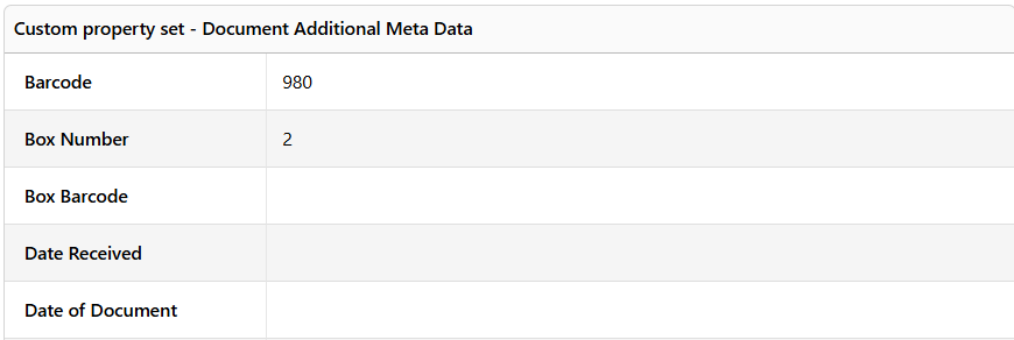
The Box is updated by populating the box number field in the MAGIQ Documents Additional Document Meta Data Custom Property Set (CPS).
Starting Scan 2 Box
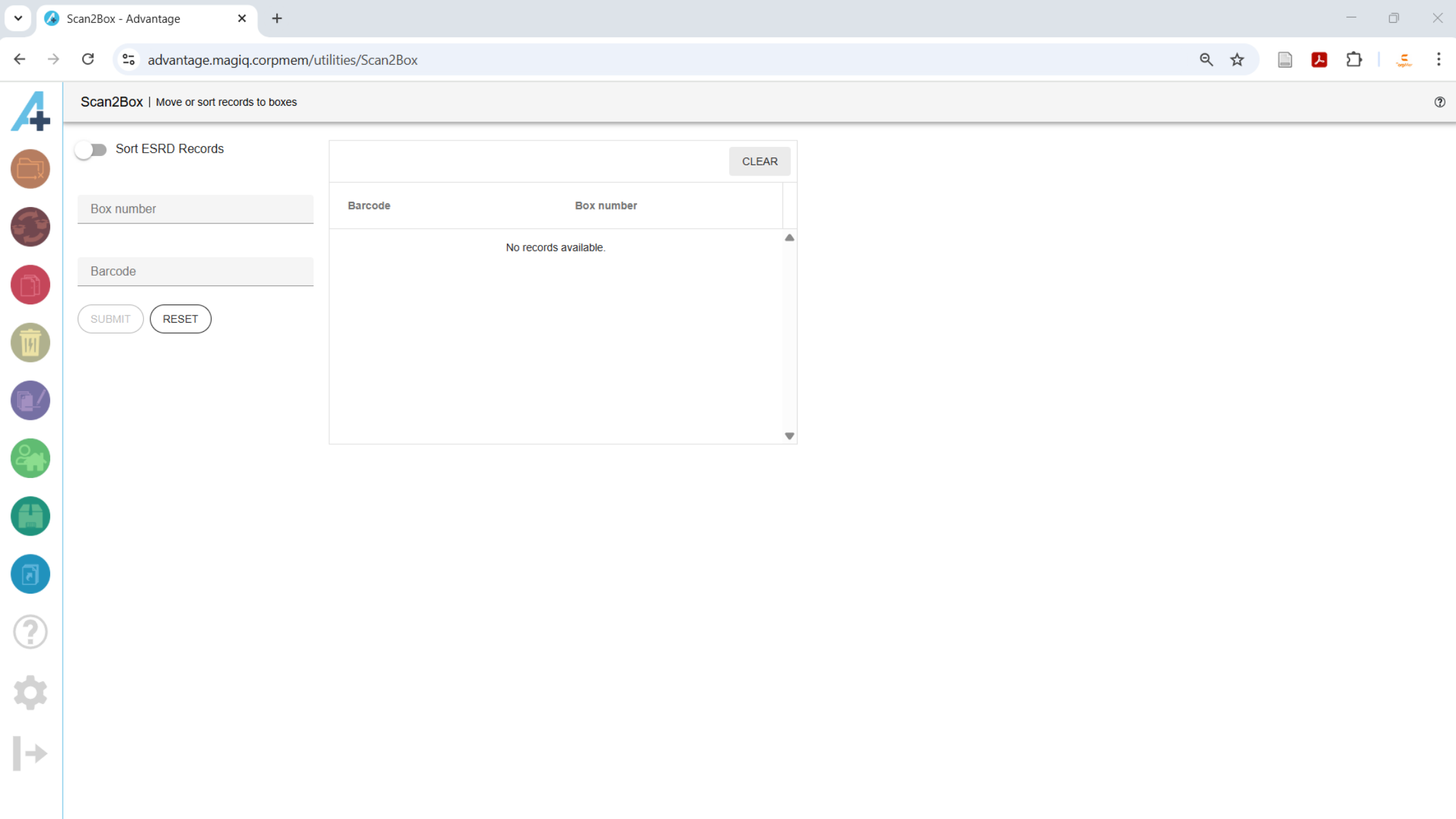
Load the utility by selecting Scan 2 Box from the CorpMem Advantage menu.

Sorting ESRD Records
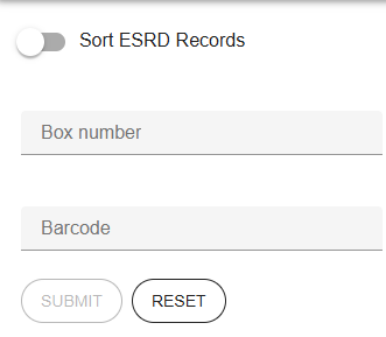
When Sort ESRD Records is not toggled, a box number can be entered into the Box number field and as documents' barcodes are submitted after being entered into the Barcode field the document's box number field in the MAGIQ Documents Additional Document Meta Data Custom CPS Box is populated with the value from the Box number field.
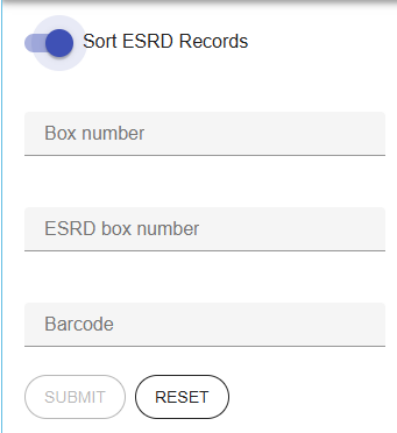
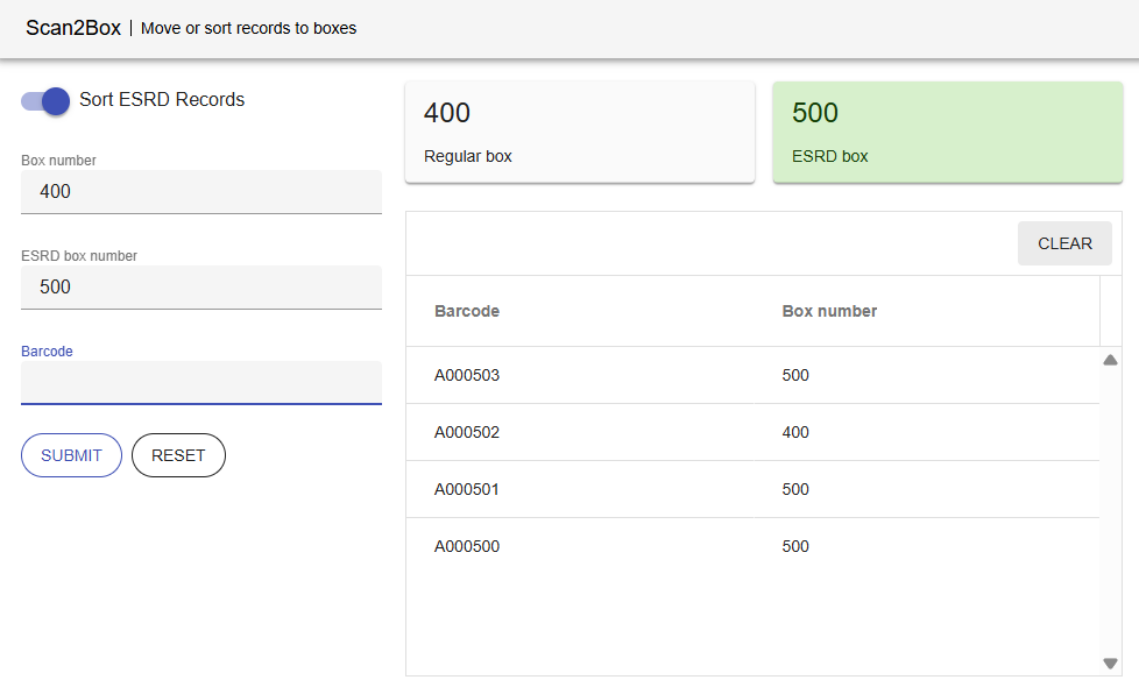
When Sort ESRD Records is toggled, a box number can be entered into the Box number field and a box number can be entered into the ESRD Box Number field. As documents' barcodes are submitted after being entered into the Barcode field the document's box number field in the MAGIQ Documents Additional Document Meta Data Custom CPS Box is populated with the value from the Box number field if the document is not eligible for ESRD or the value from the ESRD Box number field if the document is eligible for ESRD.
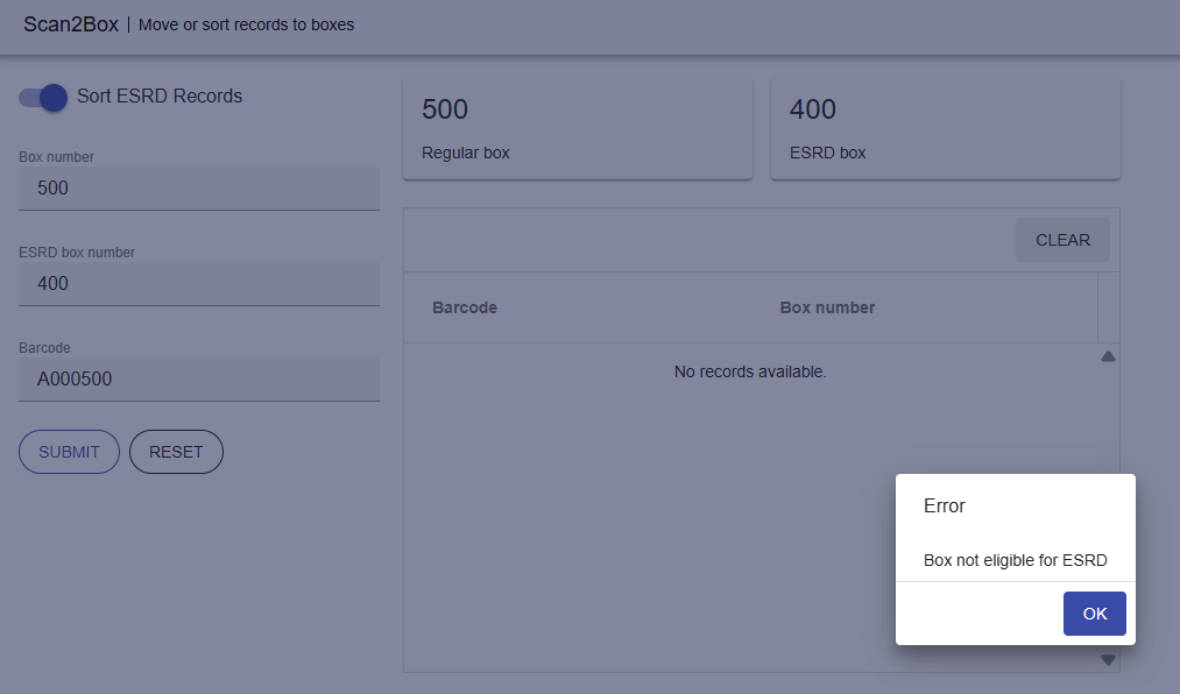
If the box number entered into the ESRD Box Number field already contains documents not eligible for ESRD, then an error message appears advising of the same.
Submitting barcodes
Clicking the  button or hitting the Enter key on the keyboard submits the barcode for processing.
As barcodes are processed, the box number they have been allocated is highlighted green. Different beeps are audible for each box so that the hard copy can be physically placed into the correct box without watching the screen. A log of each barcode processed and the box it was allocated is displayed in a grid on the screen.
Clicking the  button will clear the grid.
Clicking the  button will reset the box numbers.