NARM
The Name and Address Register (NAR) Manager (NARM) provides a facility to manage and consolidate correspondent information metadata applied to documents in infoRouter. InfoRouter doesn't have a NAR. Correspondent information is stored in a custom property set that is attached to each piece of correspondence. Each document has its own copy of a correspondent's details. When looking up a correspondent's details, the query used, provides a list of unique correspondent's details. Even if the exact same correspondent's details are added to multiple documents, meaning there are multiple copies of the same correspondent's details saved in infoRouter, the details only appear once in the list returned by the lookup.
If a mistake is made while entering a correspondent's details, the new details will appear in the list returned by the lookup. The NARM utility is used to simplify the process of fixing mistakes. CorpMem promotes that best practice dictates correspondent's details are metadata that applies to individual documents and should represent what correspondent information was available at the time of registration. This metadata should not be changed in the future, even if the correspondent's details have changed as the metadata is intended to be a record of what the details were at the time of registration. Organisations can choose to treat correspondent's details as a NAR and use this utility to consolidate all document's correspondent details into a single set of details.
Starting NARM
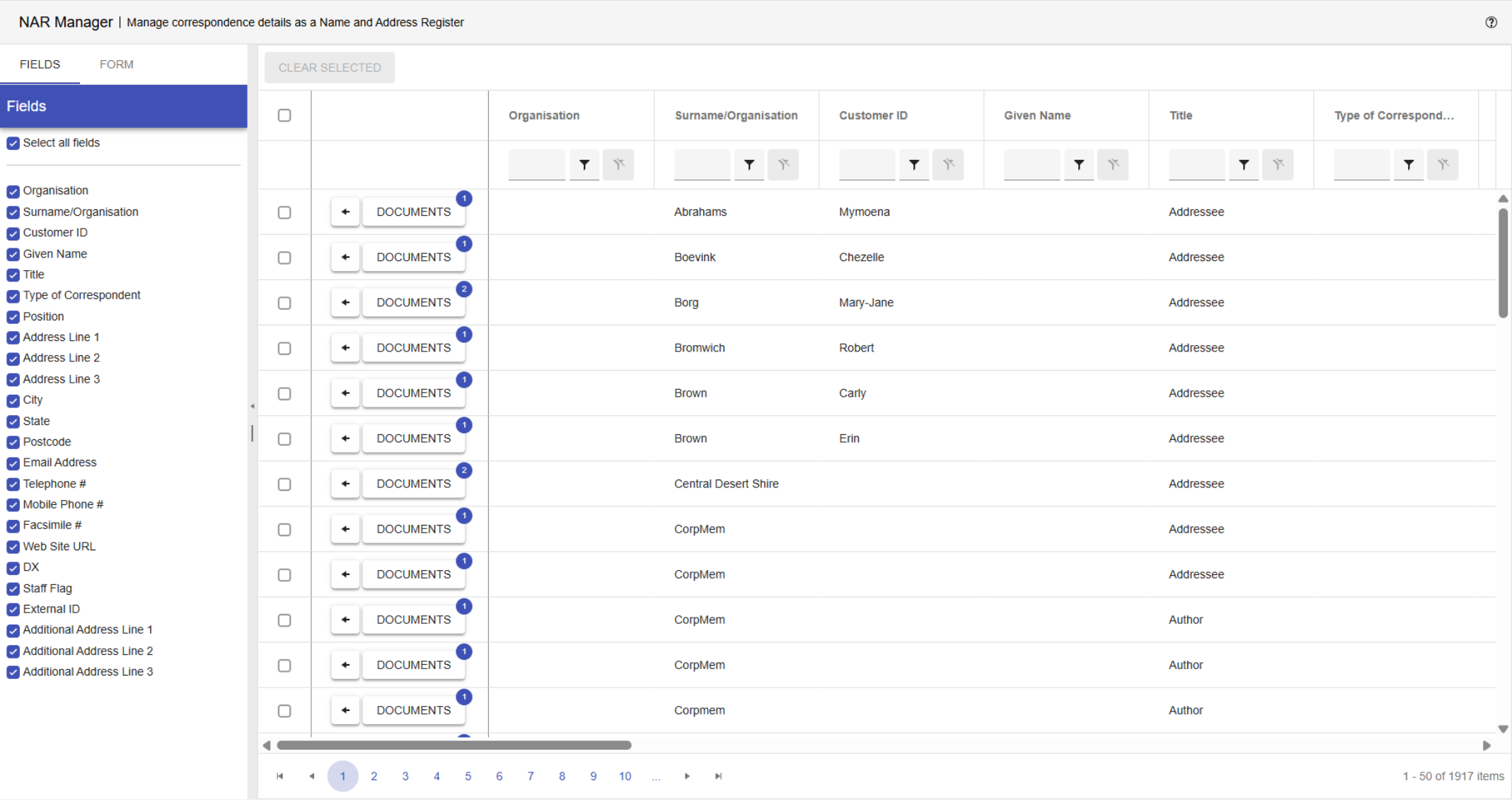
Load the utility by selecting NAR Manager from the CorpMem Advantage menu.

A list of every unique correspondent custom property set is returned in the grid.
Sorting and Filtering
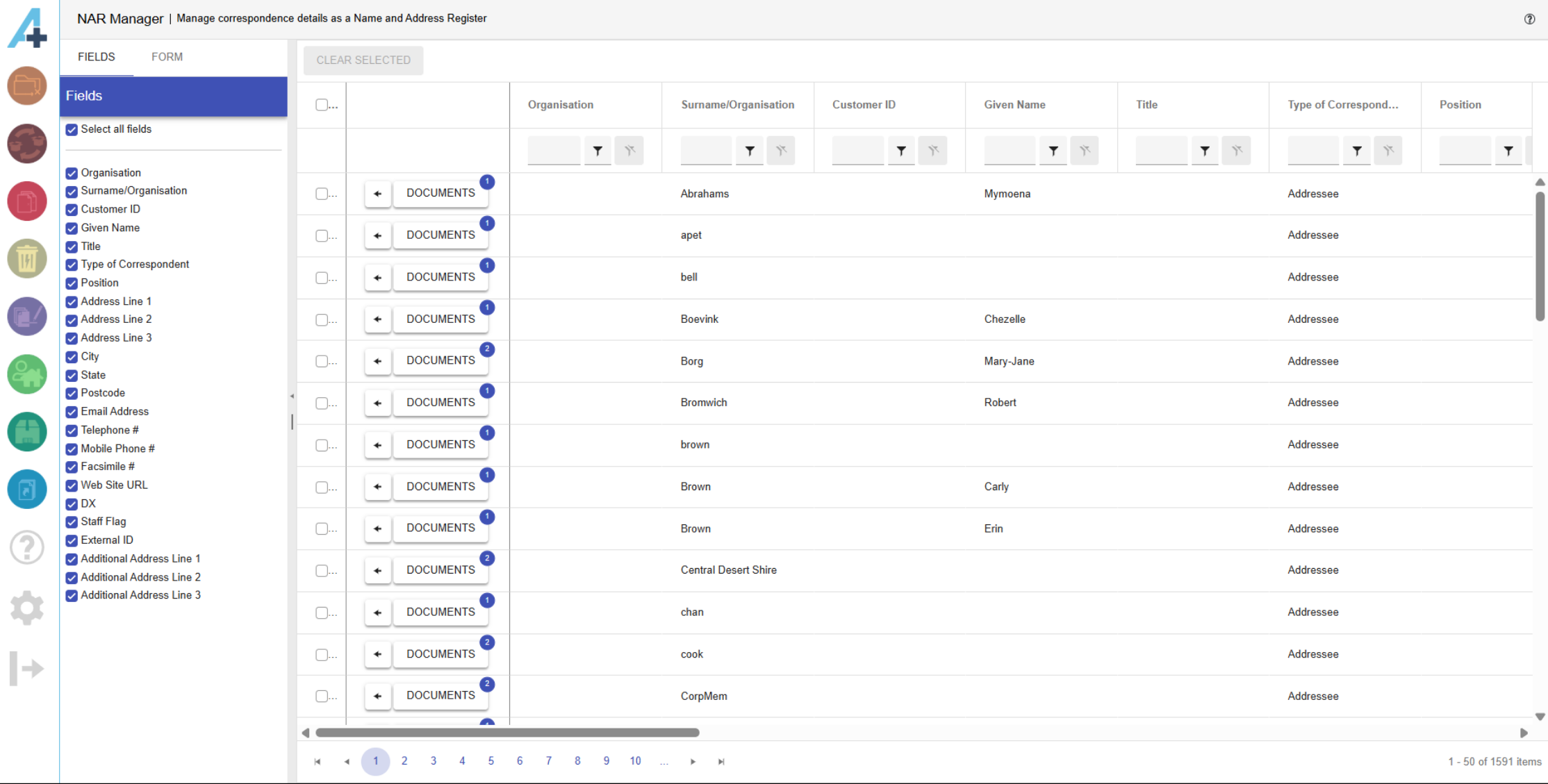
Clicking on a column name sorts the list by that column. Clicking a column heading again will reverse the sort. Entering text into the filter box below a column heading will display only correspondents that contain the filter text in the field.
Fields Tab
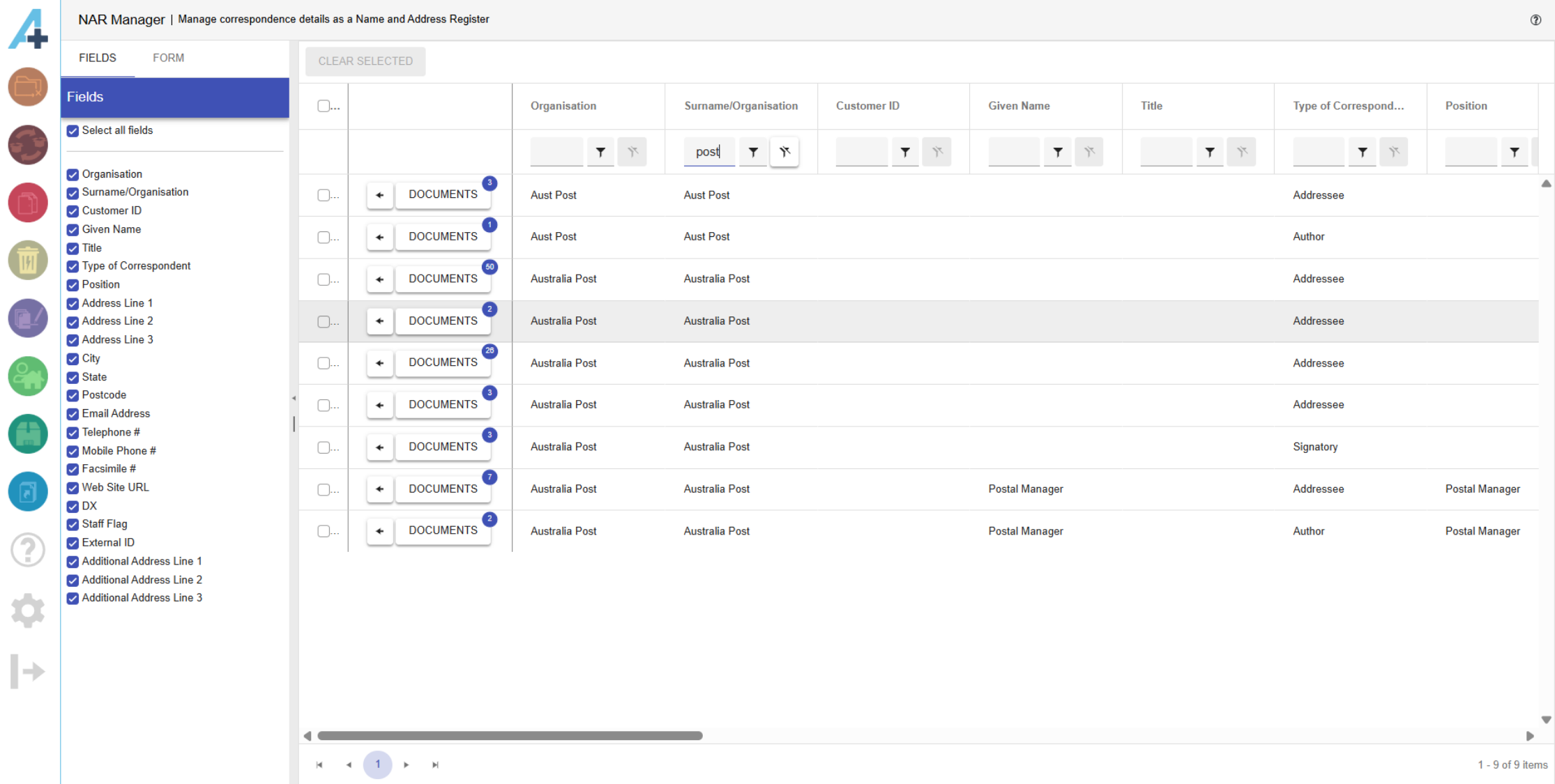
Only checked fields in the fields tab will be displayed as a column in the grid.
Form Tab
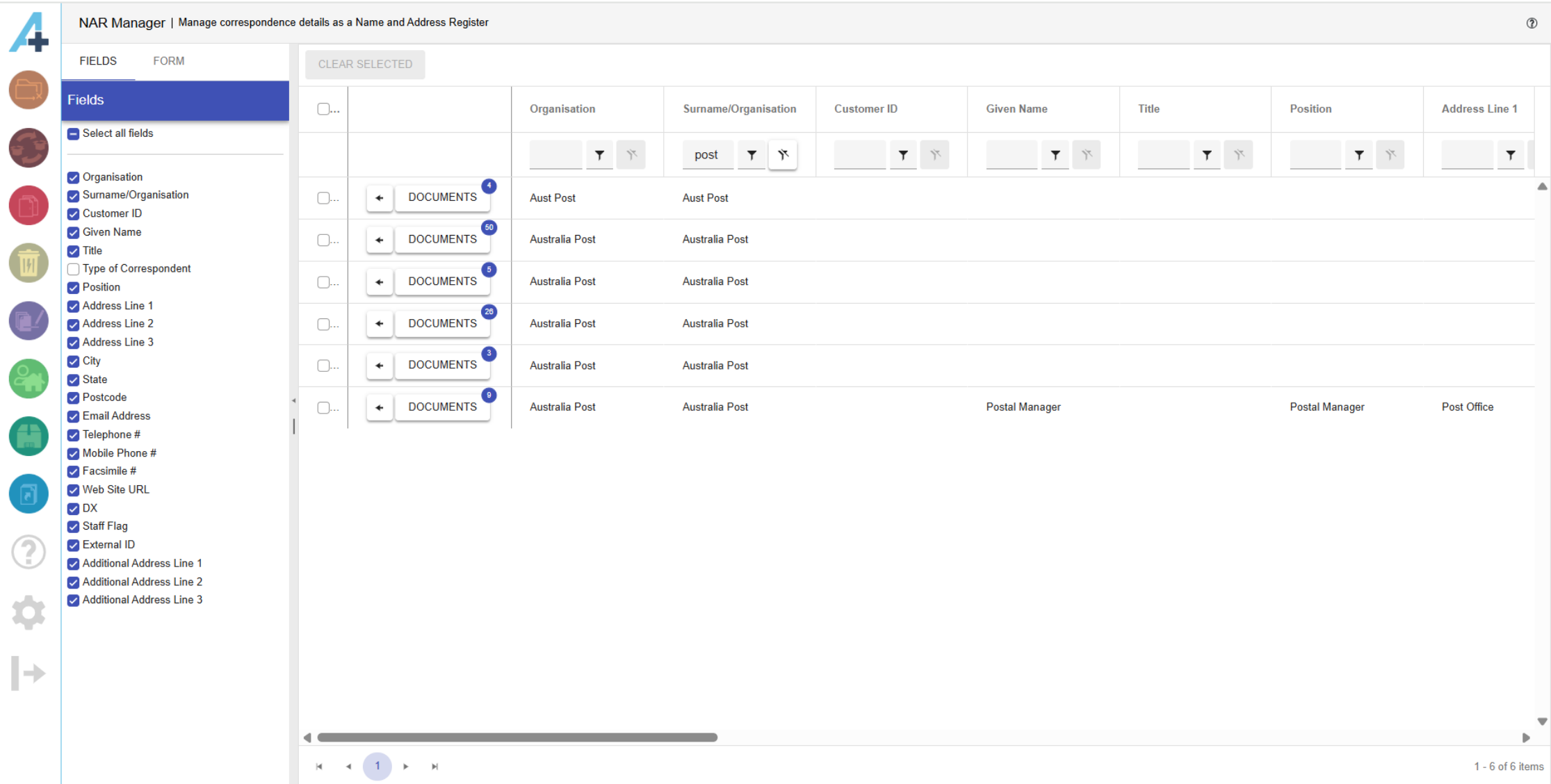
Clicking the left facing arrow button populates the fields in the Form tab with the values from the grid row. Alternatively, any field in the Form tab can be edited manually.
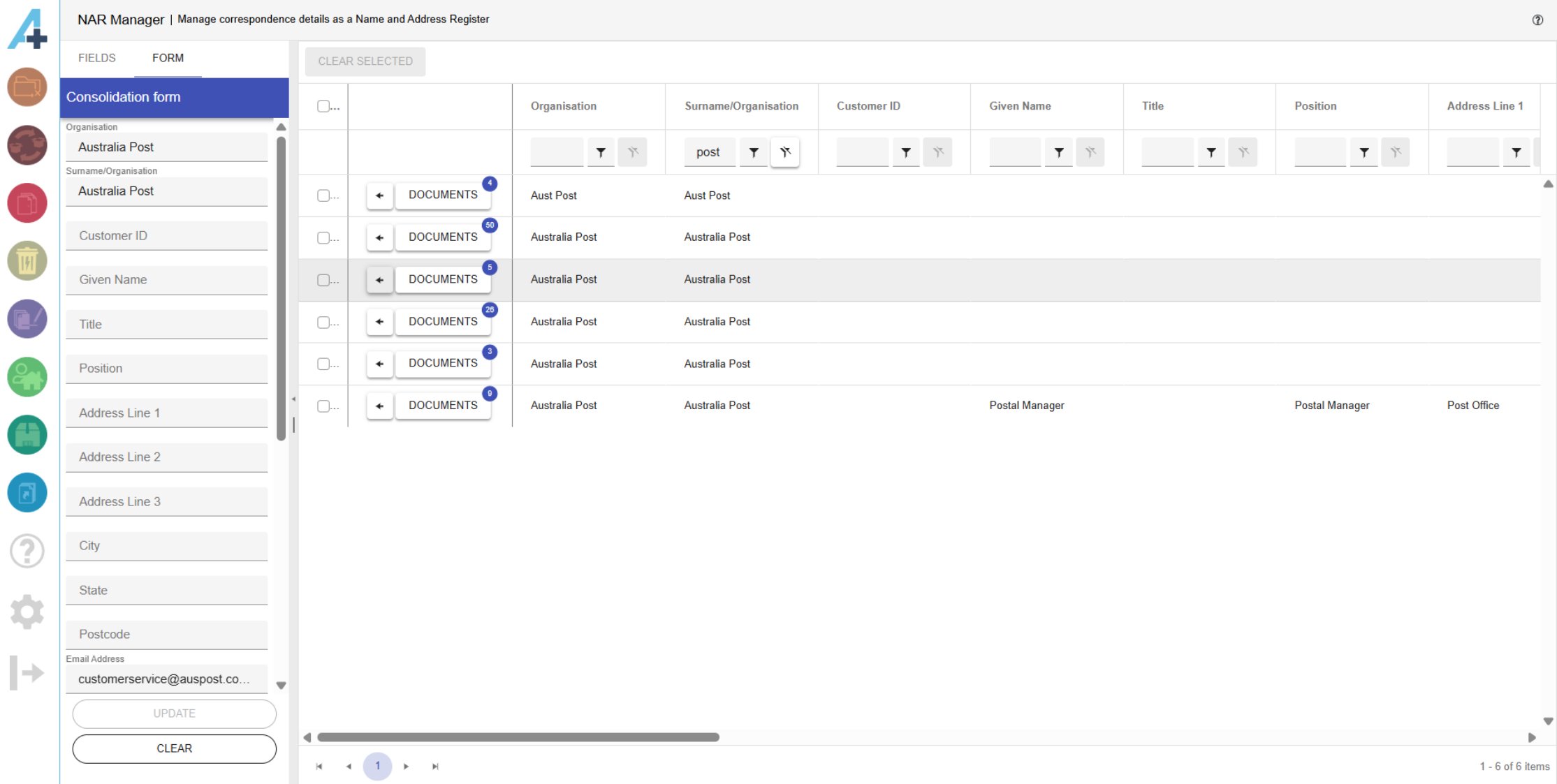
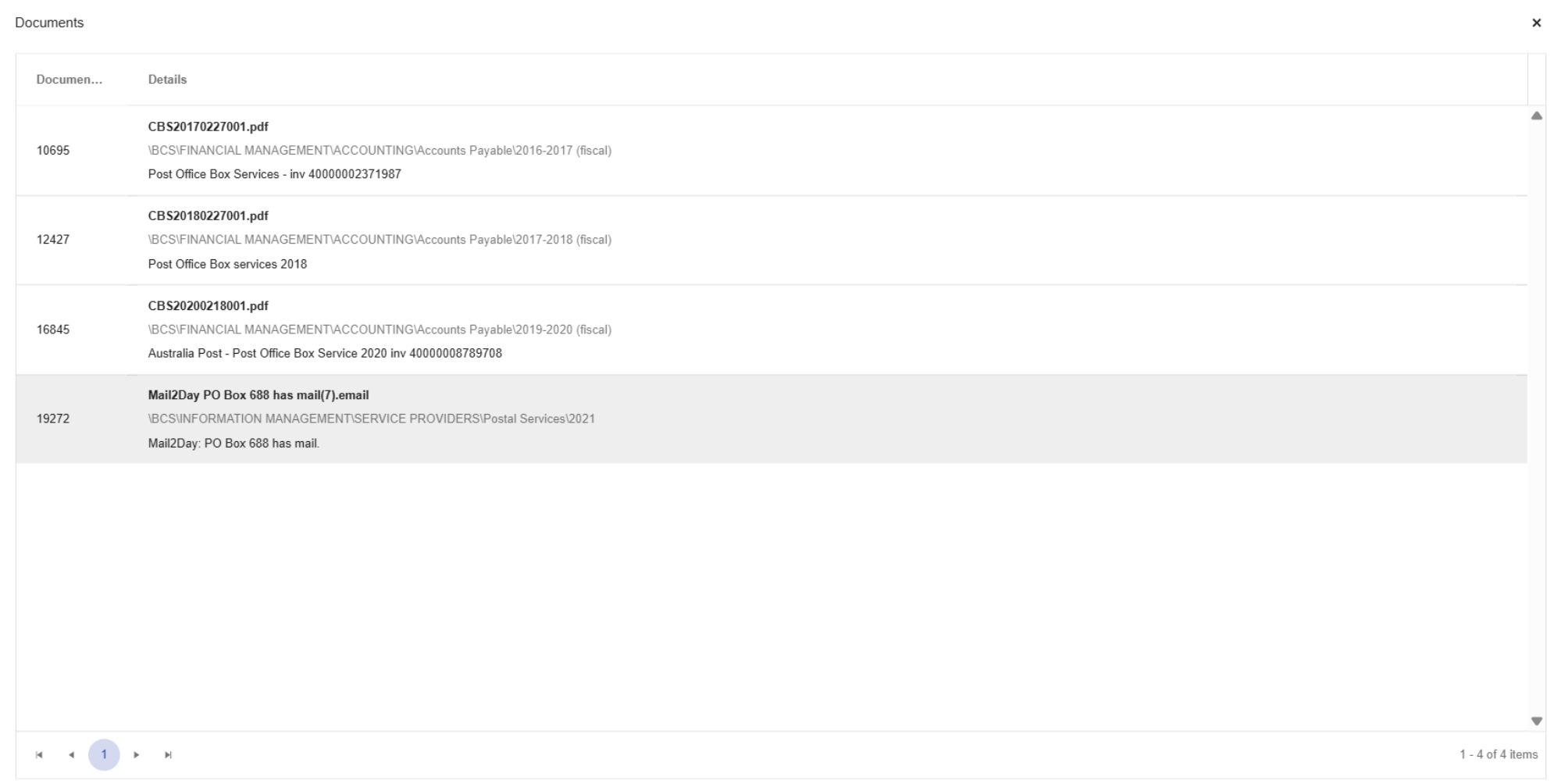
Clicking the Documents button displays every document that has a correspondent custom property set that contains the exact same data that is in the fields displayed in the row.
Update
Check the rows to be updated with the values in the Form tab and click the Update button.
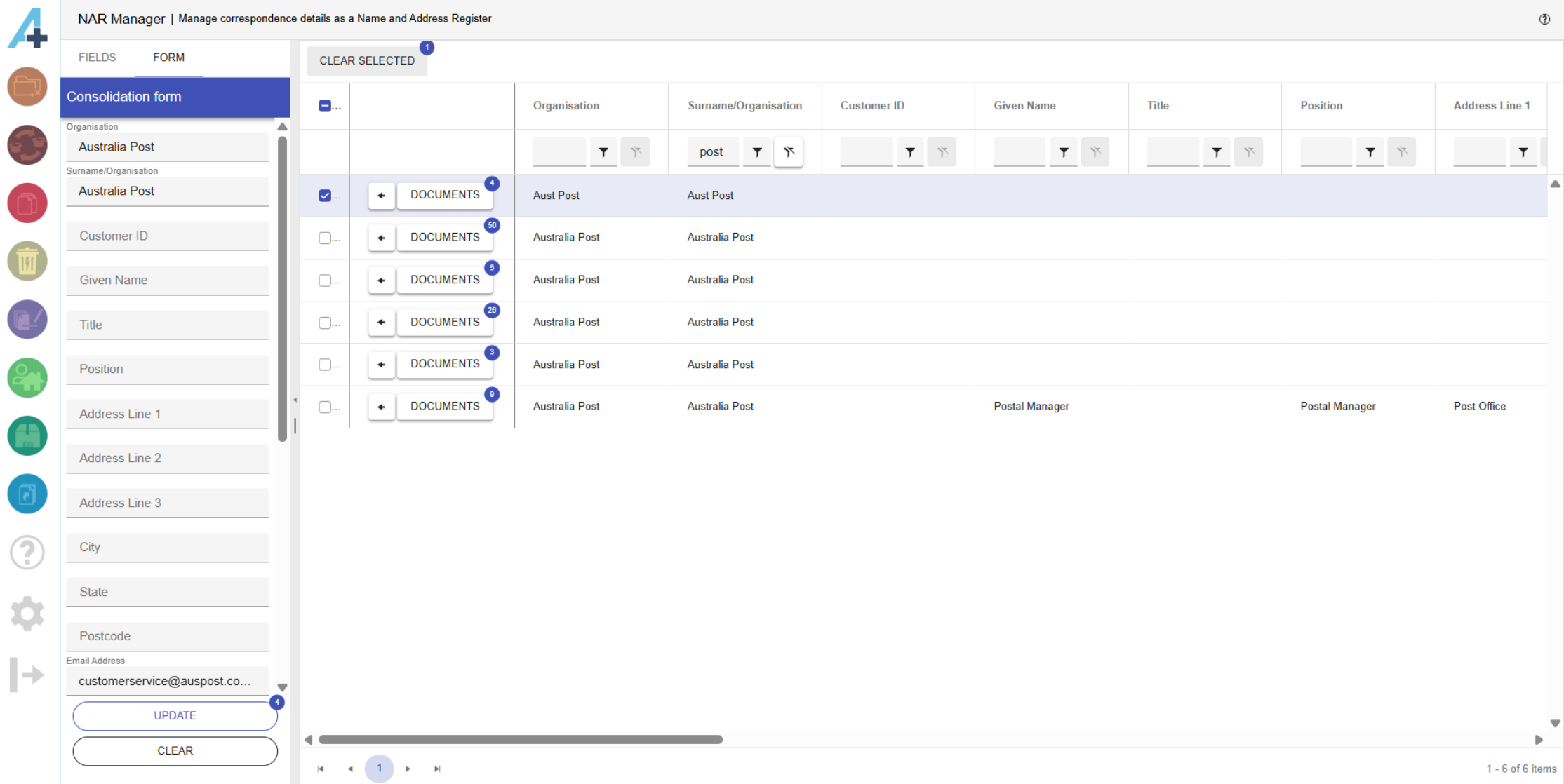
After updating, the grid will be refreshed with rows that display the new number of documents that have a correspondent custom property set that contains the exact same data that is in the fields displayed in the row
No Database Connection
If Advantage can't be connected to the MAGIQ Document's database, an extract must be created of all the correspondents details in MAGIQ Documents. The extract is created by by running the CBS-CA-NARM-Extract report from the MAGIQ Documents Reports Module. Change the report output format to text before running it and save the report on an accessible computer drive.
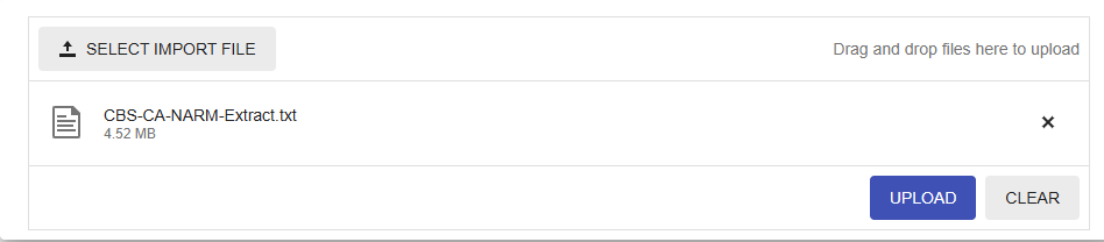
Click the SELECT IMPORT FILE button to import the extract.
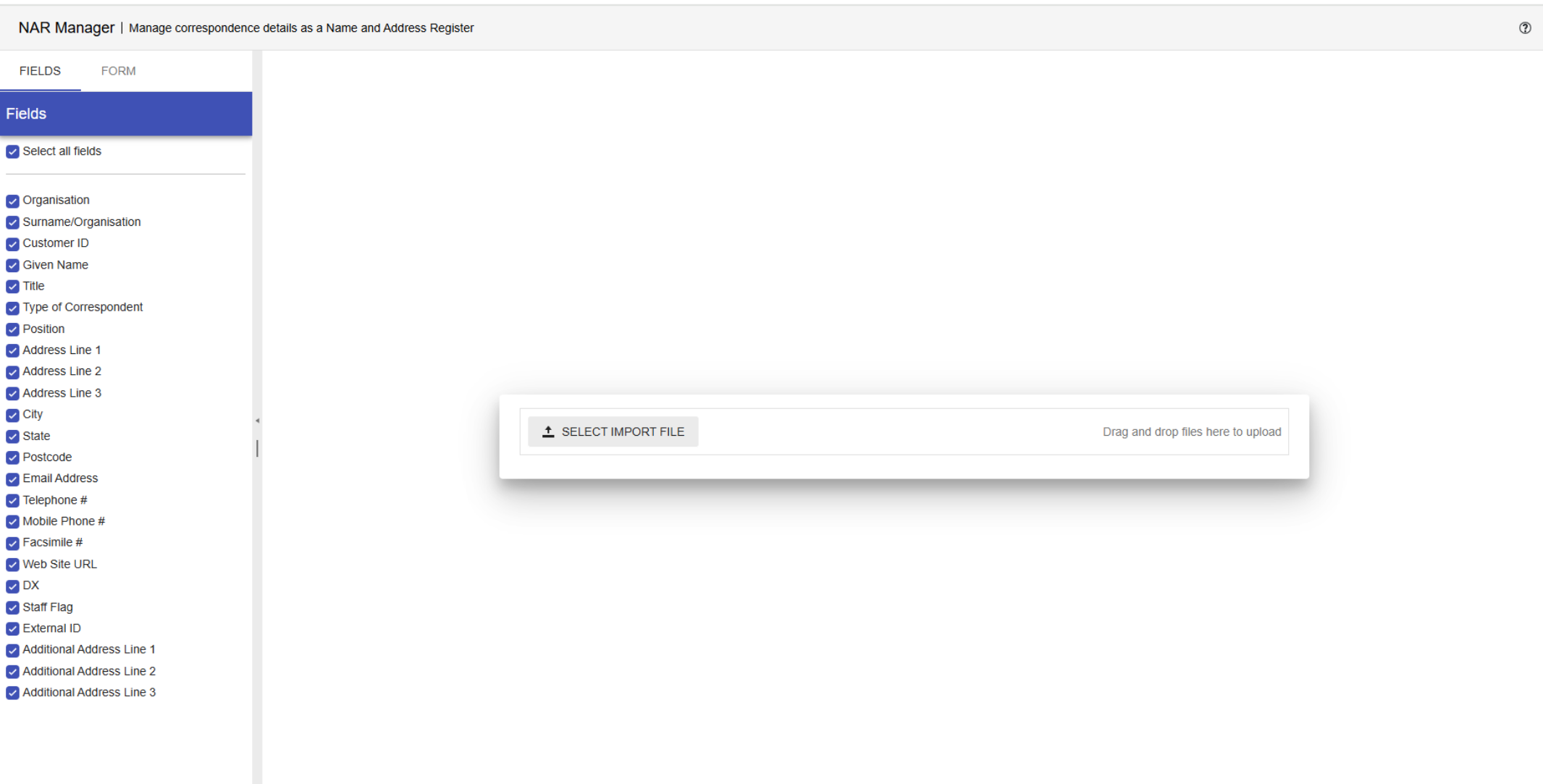
Click the UPLOAD button to upload the extract into NARM.
The progress bar shows the upload's progress.

Once the upload is complete, NARM will behave exactly as if Advantage was connected to the database.