Auto CLose
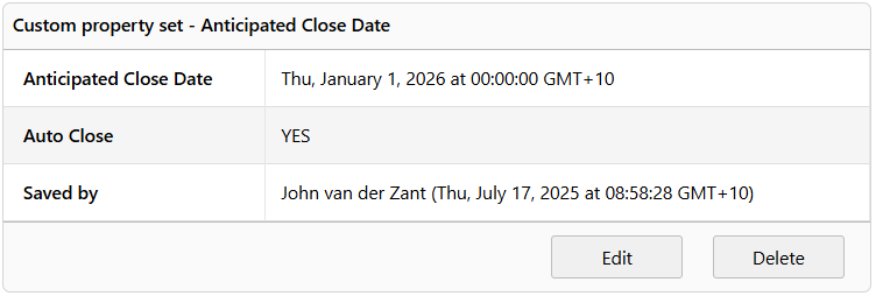
The Auto Close utility allows users to cut off multiple folders at the same time. Auto Close knows which folders are eligible for closing by looking for folders that have an Anticipated Close Date custom property set where Auto Close is set to true and an Anticipated Close Date less than today.
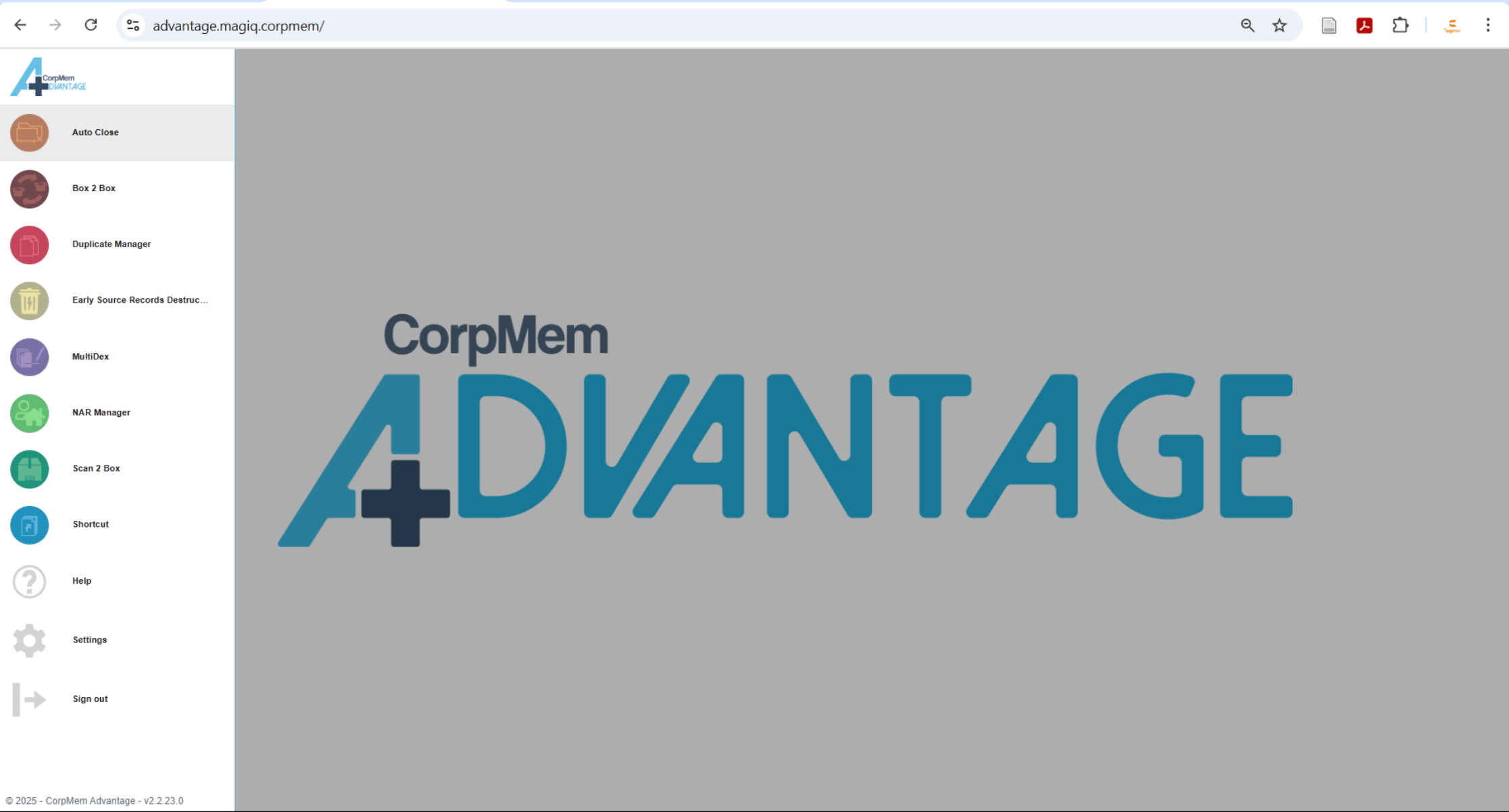
Starting Auto Close
Load the utility by selecting Auto CLose from the CorpMem Advantage menu.
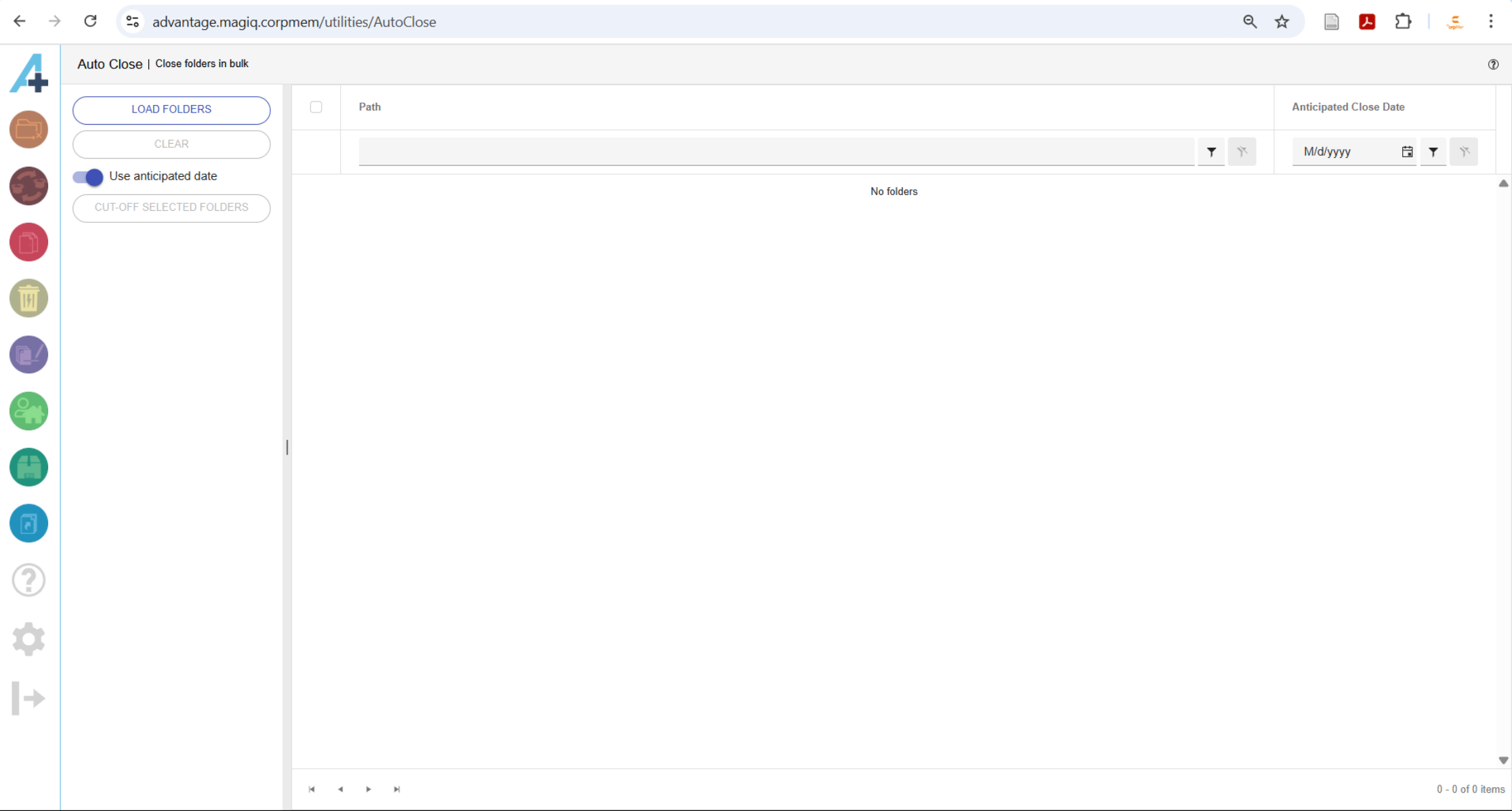
Loading Folders
Auto Close loads with no folders displayed.
Clicking the  button loads every folder that is know to be due for closing.
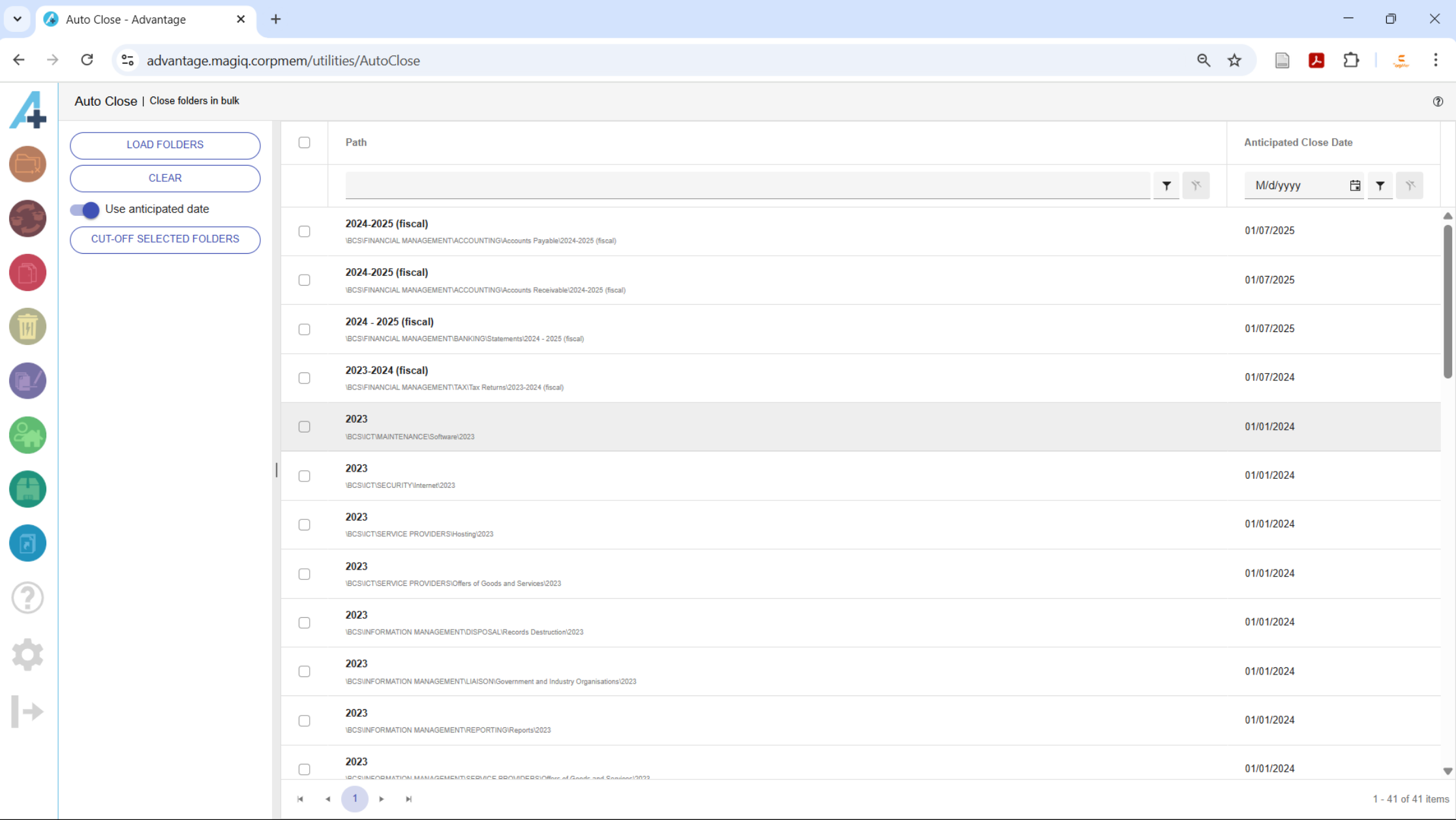
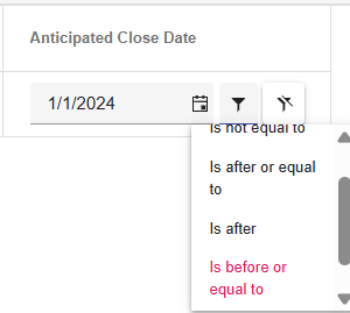
Use the Anticipated Close Date to filter the loaded folders.
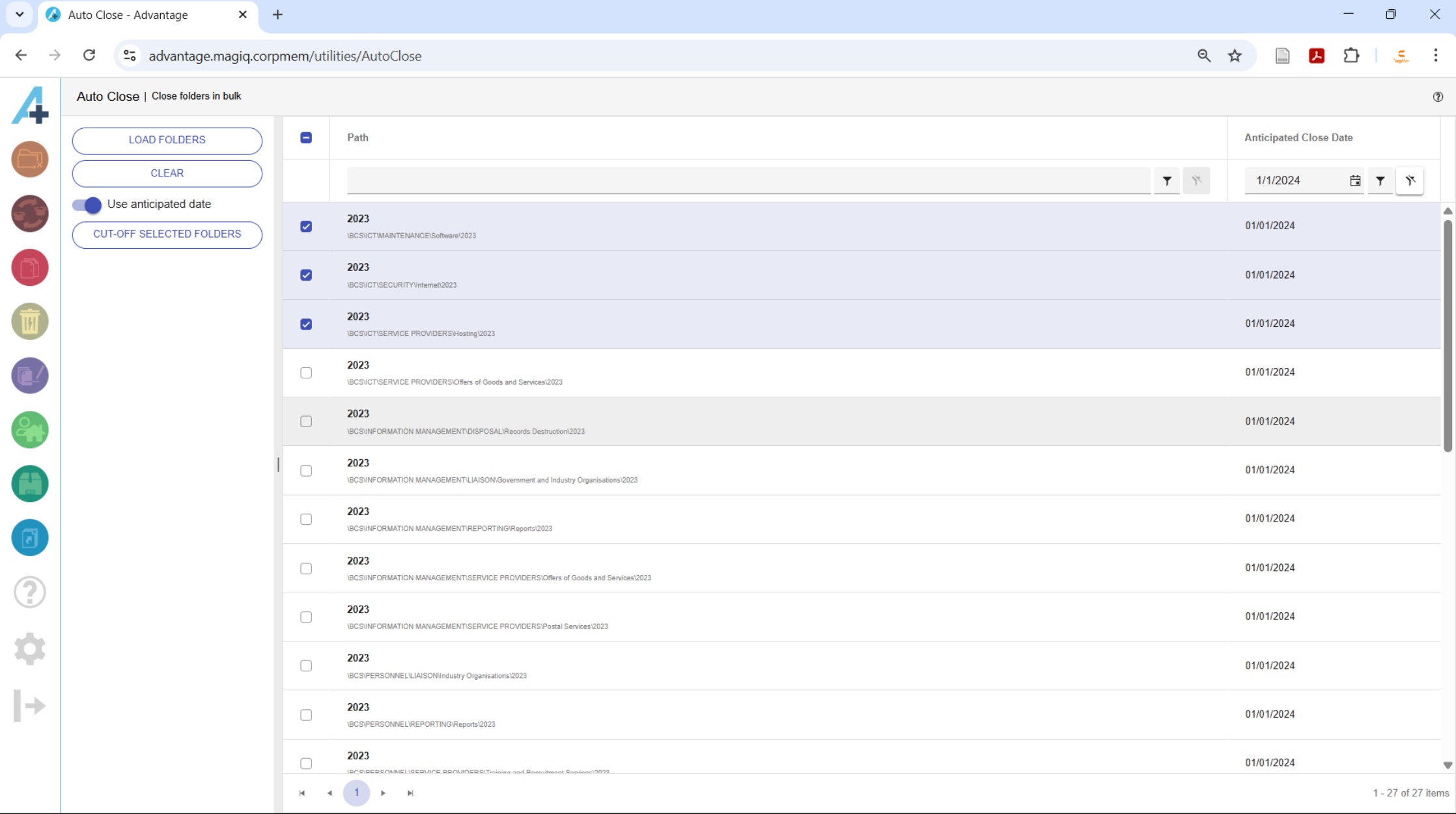
Check the folders to close. When  is toggled, folders will be cut off using the date in the Anticipated Close Date column.
When  is not toggled, folders will be cut off using the date in the Cut-off Date field.
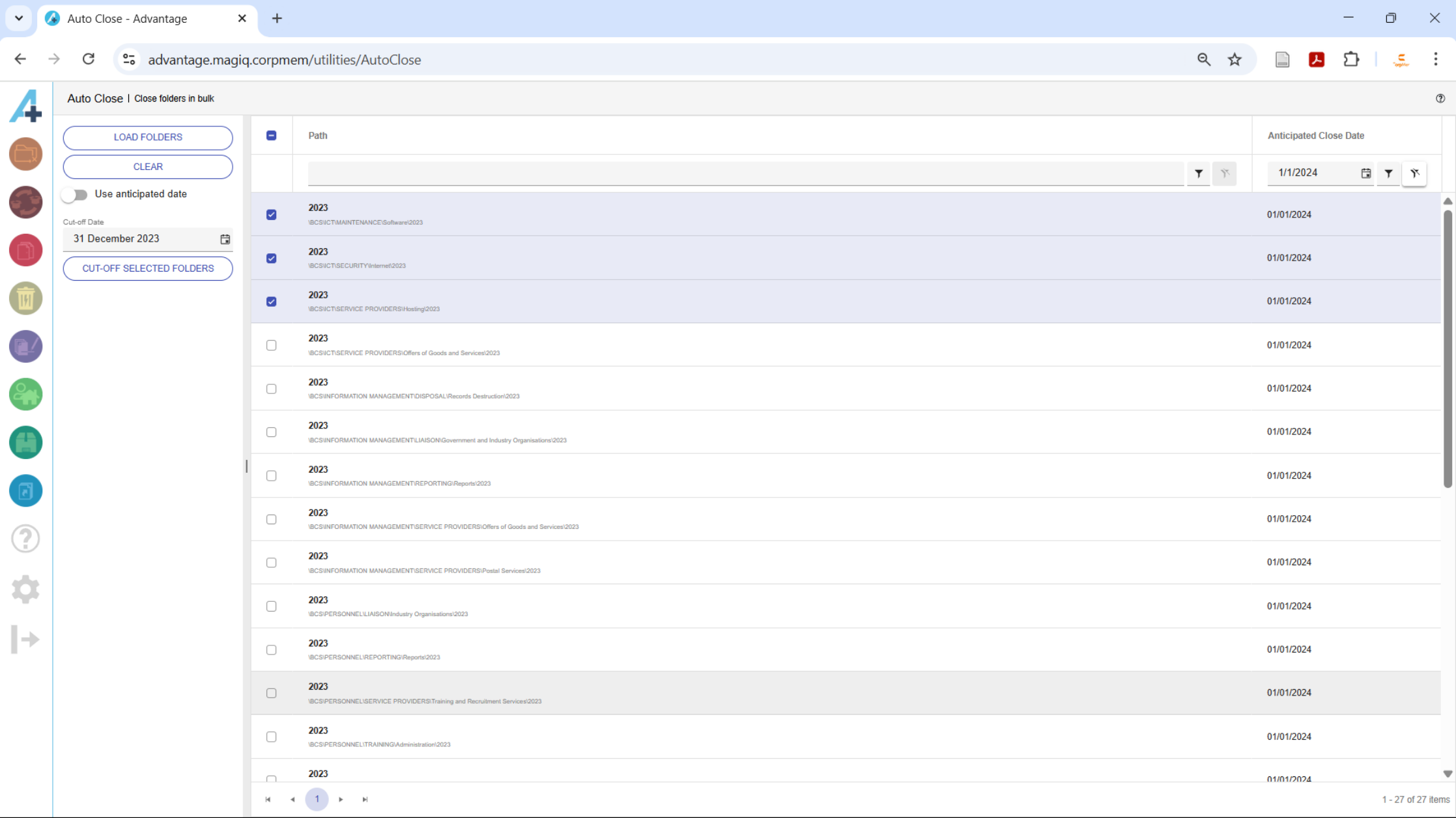
Click the  button to cut-off the selected folders.
