Duplicate Manager
Duplicate records reduce the value of your record collection by contributing to clutter and increasing the overhead of managing records. The CorpMem Advantage Duplicate Manager utility provides an easy to use maintenance process for managing duplicates.
Starting Duplicate Manager
Load the utility by selecting Duplicate Manager from the CorpMem Advantage menu.

Finding Duplicates
Click the checkboxes to the left of the infoRouter Libraries to be searched for duplicates.
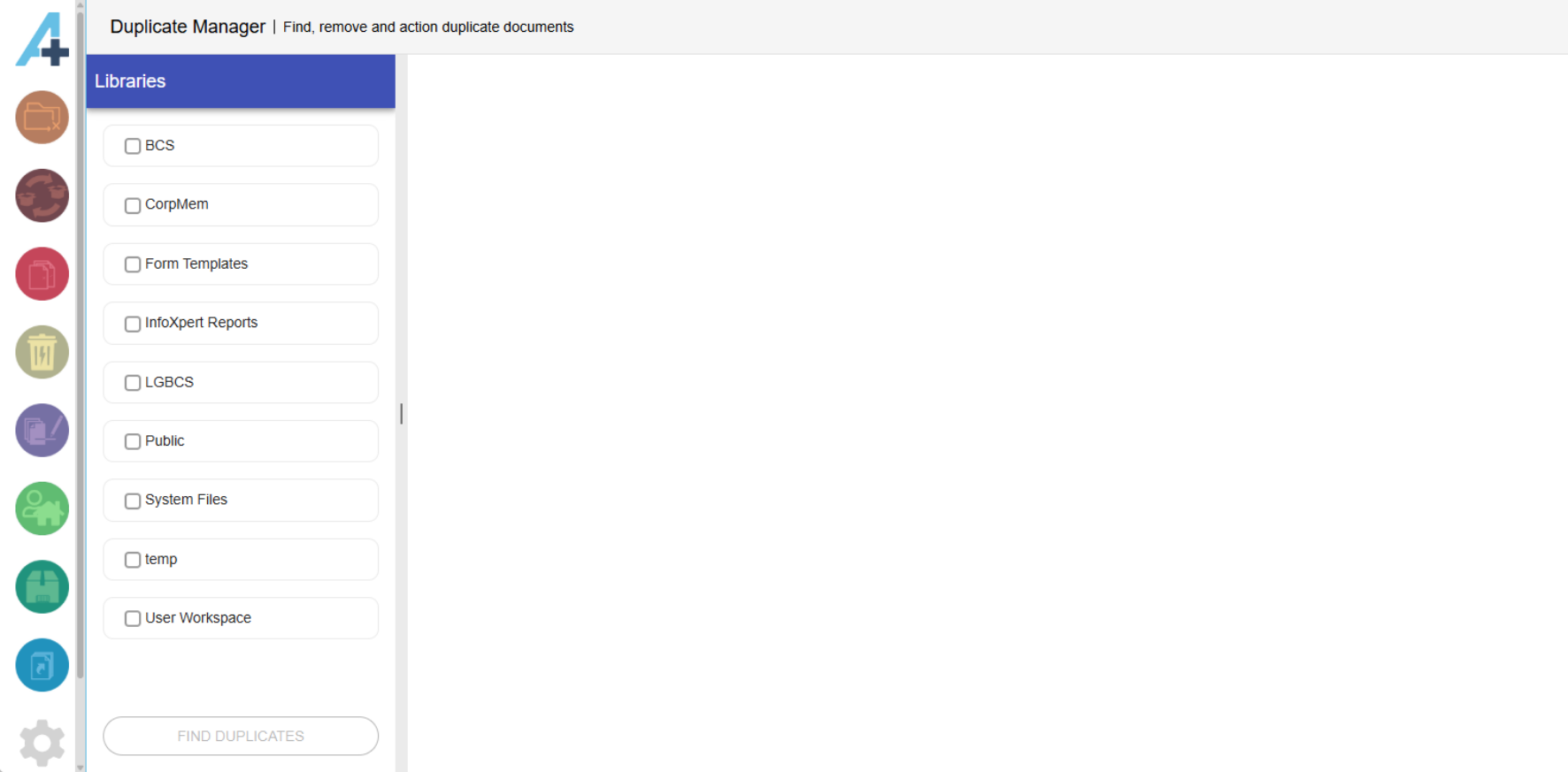
Up to five Libraries can be selected. The  button displays how many of the maximum of five Libraries have been selected. Each selected Library is allocated a colour for easy identification.
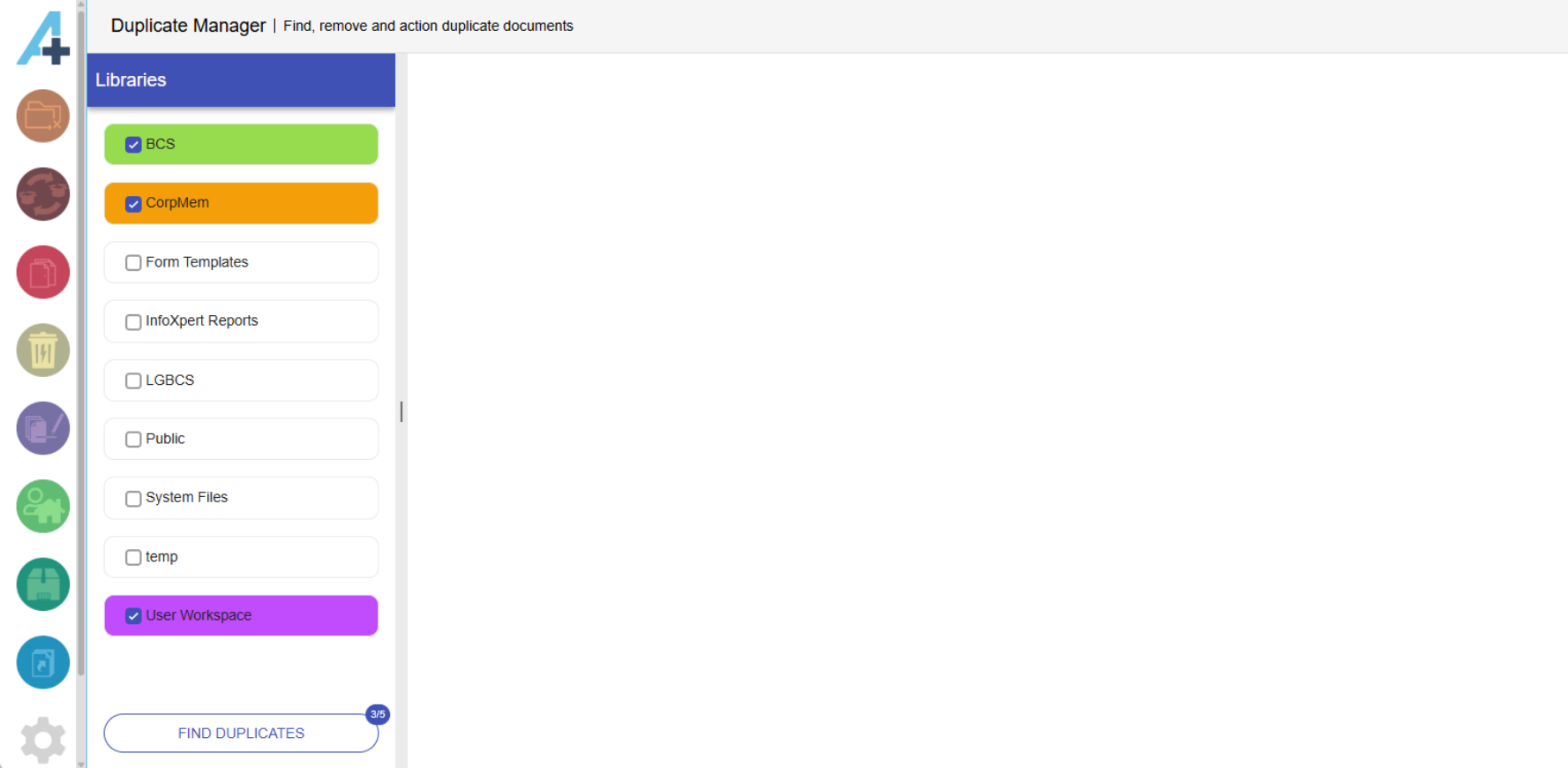
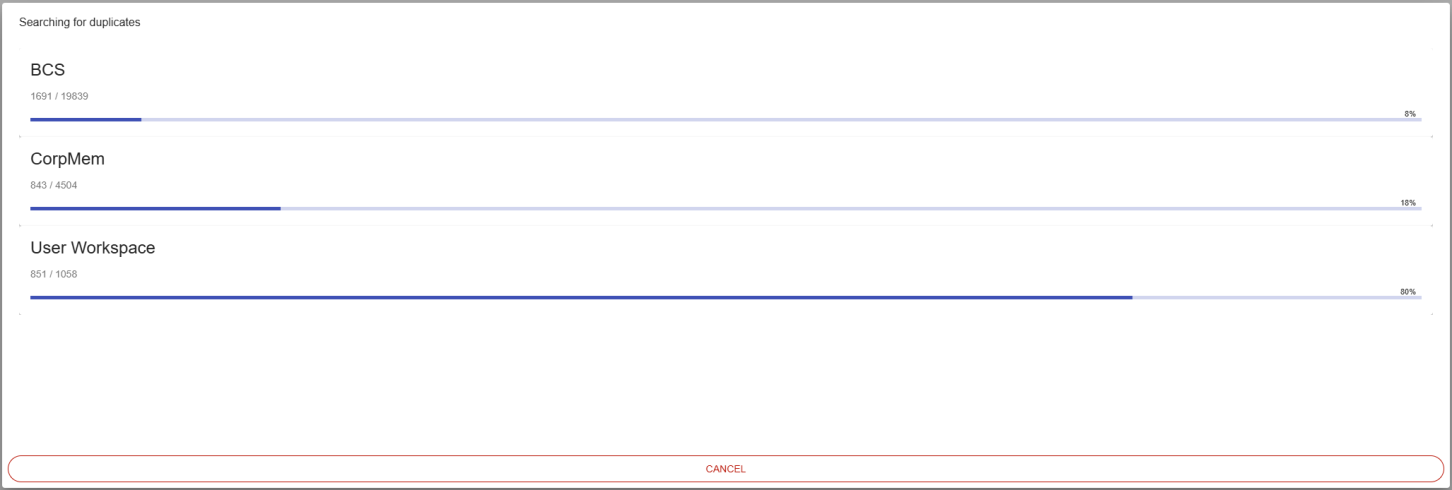
Clicking the button initiates the search for duplicates within the combined Libraries. The search may take several minutes to complete depending on the number of documents to search through.
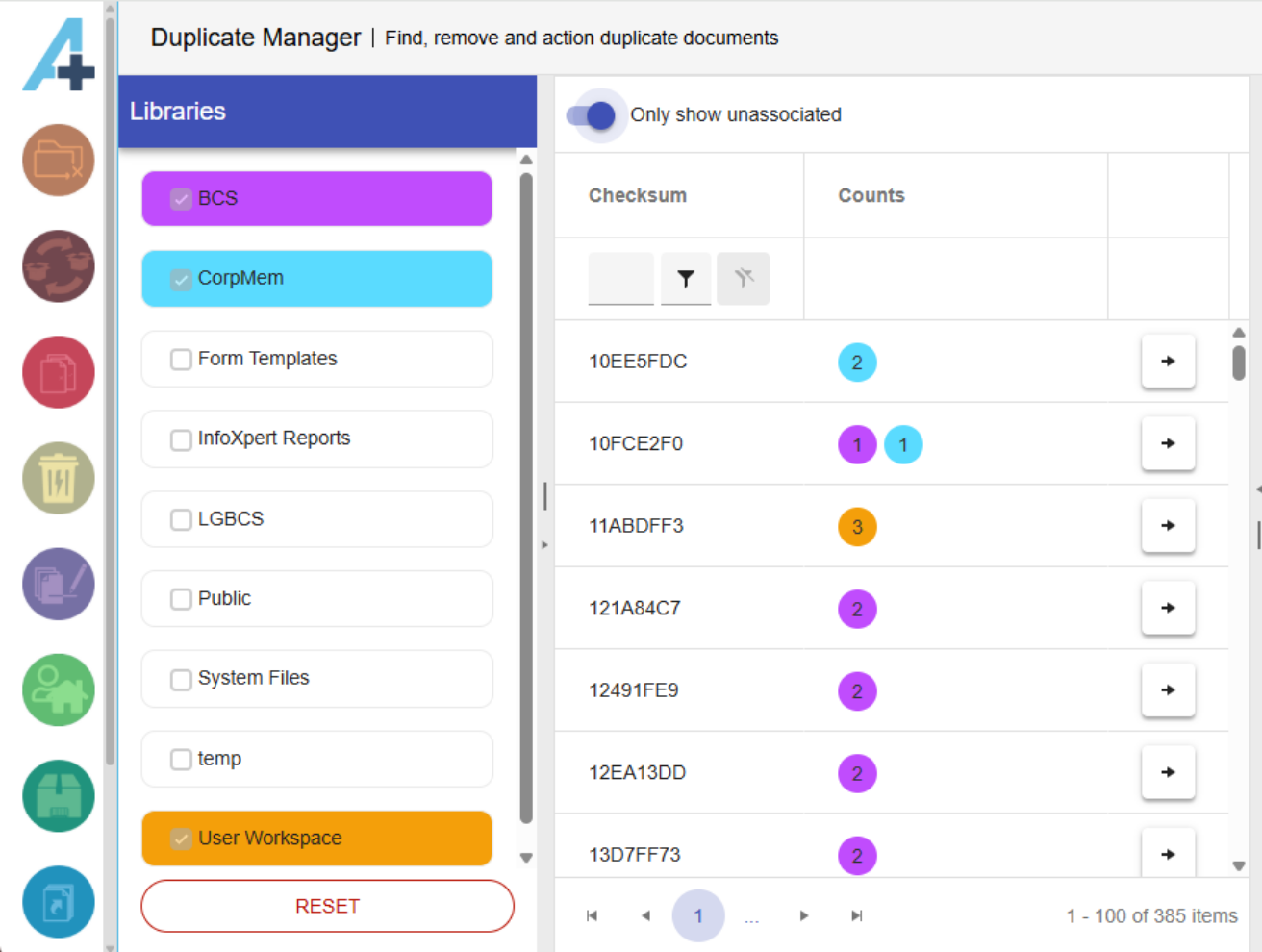
Because there are situations when duplicates are required to be kept, Duplicate Manager uses infoRouter associations to identify which duplicates are acceptable.
Toggling on the  toggle to "only show associated", will remove duplicates that are associated to all duplicate documents with the same checksum. This make it clear to the user which duplicates need to be managed.
When duplicate documents are found, the infoRouter generated checksum is displayed in the Checksum column and the count of duplicates found is displayed in the Counts column, colour coded according to the Library they were found in. The results can be filtered by the Checksum.
Analysing Duplicates
Clicking on the  button displays each duplicate's details in the right hand pane.
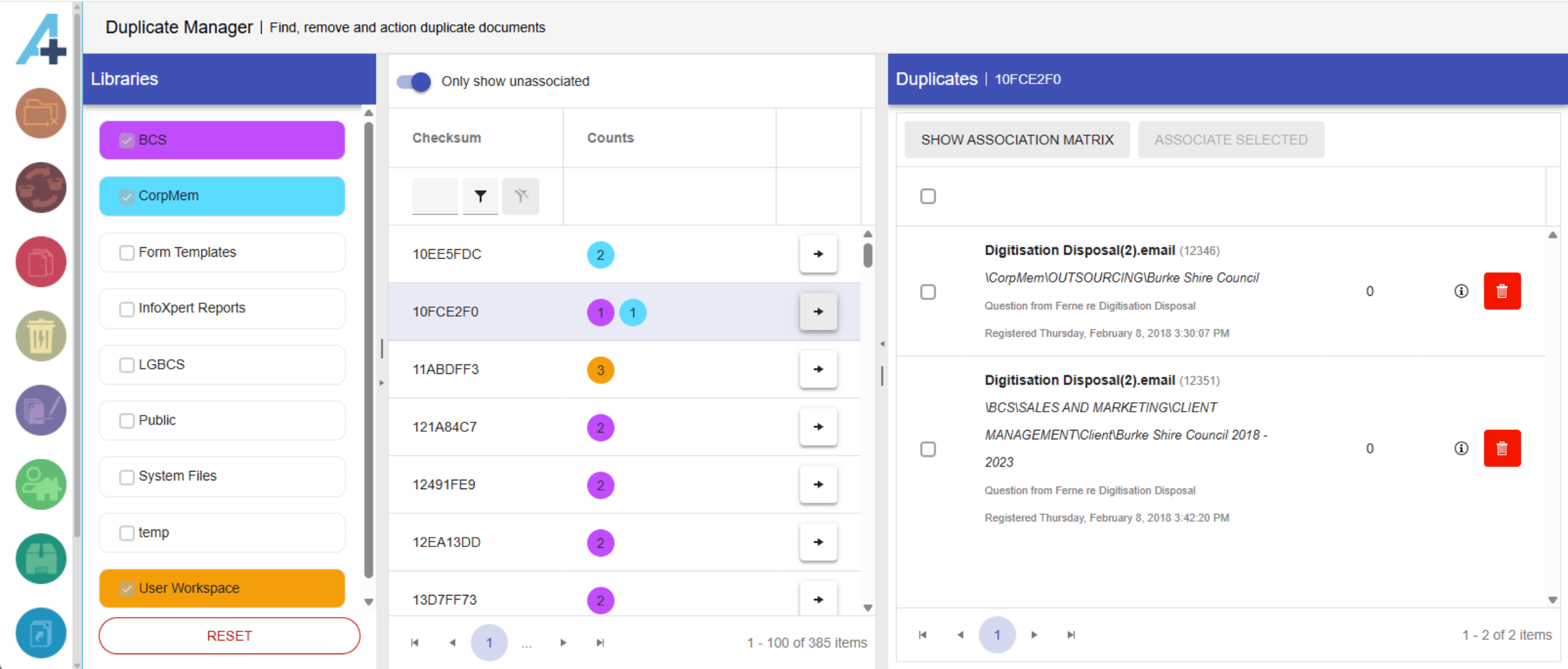
Clicking on the  button graphically displays the associations between each duplicate.
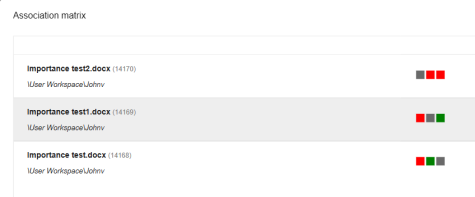
Each document in a row is represented by the squares in the column numbered equal to its row number. The document in the first row is represented by column 1, the document in the second row is represented by column 2, etc. The grey square represents the Row's document. Red squares represent that no association exists between the row's document and the document in the row equal to the column number. Green squares represent that an association exists between the row's document and the document in the row equal to the column number.
In the image above, the first row indicates that the document in the first row (represented by the grey square), is not associated to either the document in the second or third row. The second row represents that the document in the second row (represented by the grey square), is not associated to the document in the first row (represented by the red square) but is associated to the document in the third row (represented by the green square).
Resolving Duplicates
Clicking on the  button displays the document's infoRouter properties. To resolve duplicate documents, inspect the documents content by clicking on the "Open this Document" button from the document's properties and also inspect the properties, taking note of the documents' Folder, Description, Comments and Tasks and Workflows. Analyse this information to decide which duplicates are required and which ones should be deleted. Clicking on the
  button deletes the document from infoRouter.
If duplicates are to be retained, click the checkboxes to their right. The number of documents selected is highlighted on the  button.
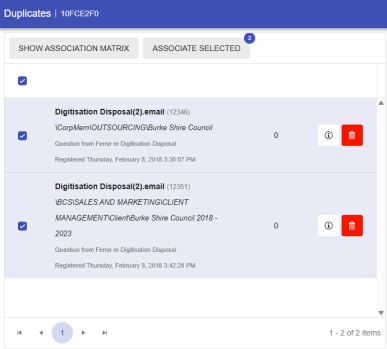
Click on the button to associate the documents. A confirmation dialogue box appears.

If all the duplicates have been associated and the toggle is toggled to "only show associated", they will disappear from the results list.